Overview
| module url | N/A | |||||||||||||||||||||||||||||||||||
| git repository | https://bitbucket.org/arrizza-public/3d-print-breadboard-half | |||||||||||||||||||||||||||||||||||
| git command | git clone git@bitbucket.org:arrizza-public/3d-print-breadboard-half.git | |||||||||||||||||||||||||||||||||||
| verification report | https://arrizza.com/web-ver/3d-print-breadboard-half-report.html | |||||||||||||||||||||||||||||||||||
| version info |
|
- copyright: Copyright and License
- repo status: Repo Information
- installation: Common Setup
Summary
This creates a holder for a half-length breadboard
It holds the breadboard at the same height as the brackets hold a PCB or other components, see Mount Brackets for an example.
To use the holder
Print the holder. See doc/how-to-print.md for a full set of instructions.
Place the breadboard in the holder. It should be snug, but removable.
Note that there are multiple half-size breadboards available. This version of the holder is meant for ones that are:
- 84 x 56 mm
- 3 1/4" x 2 1/4"
Those include the tags these breadboards normally have.
check it out
Confirm that the breadboard is stable and held correctly by the holder.
add the legs
To ensure the breadboard is at the correct height (e.g. same as a PCB held by the mounting bracket):
- set the stack height as explained in Bracket Legs
- print 4 legs
- mount the legs to the tabs on this holder with 6-32 or M3 bolts of the correct length. They should not extend below the bottom of the feet.
This photo shows breadboard next to a PCB.
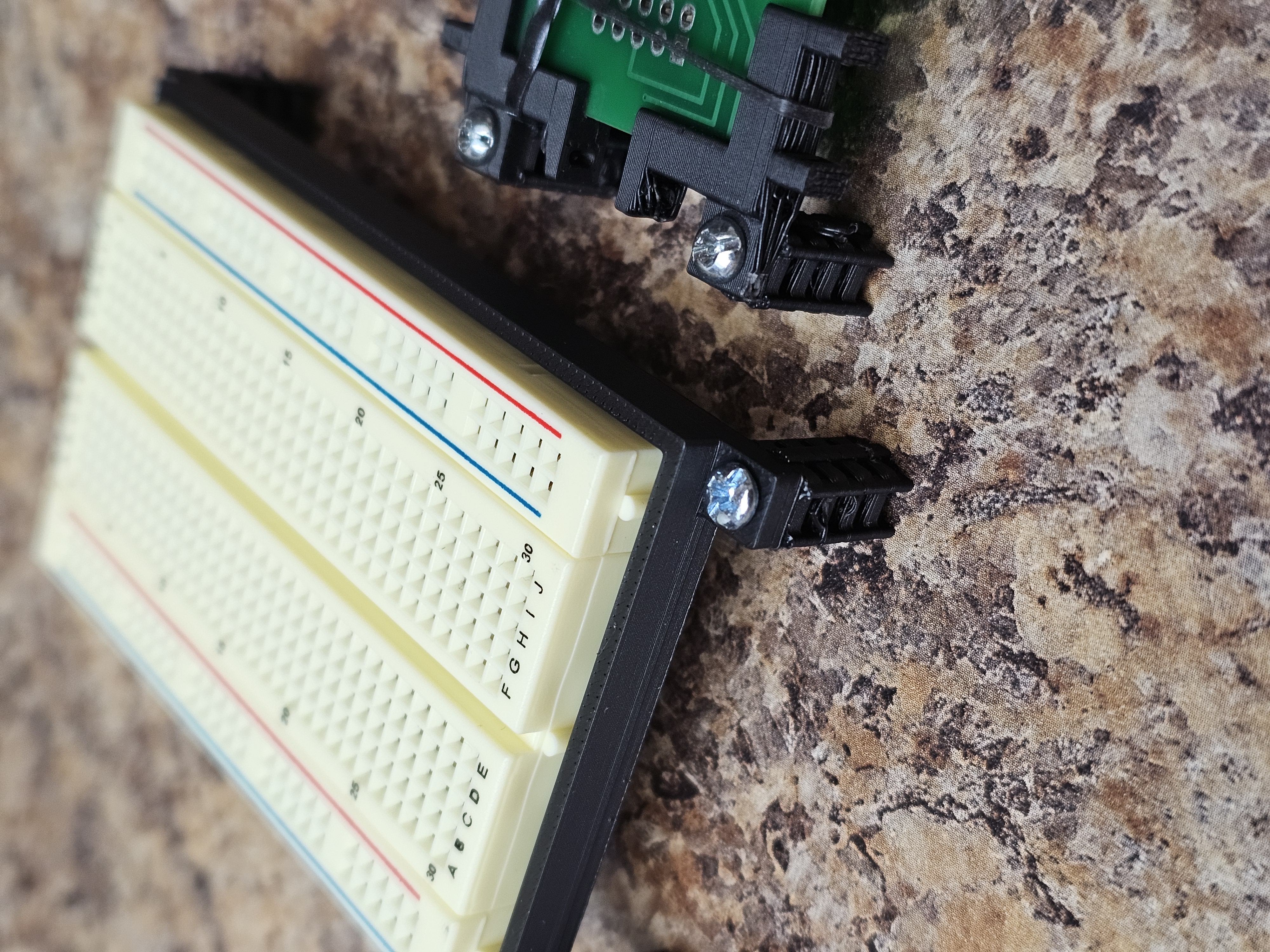
Note that the PCB is, in fact, too low. To fix that, I need to add another 1/4" leg to the leg stack. That should make them more similar in height. But I do have a servo I'd like to add to this, so, in fact, both of these may have to be raised to match up with the servo.
fix the breadboard
Once all of these are in place and working correctly for you, then put a dab of hot glue in the 4 corners to ensure the breadboard stays in the holder.
Do not use too much glue. That way, if necessary a cut with an x-acto knife can be used to cut the breadboard out of the holder.
How to 3D print
Note: this assumes you are using a BambuLab 3d printer. I have a BambuLab A1 Mini.
install openscad, etc
See doc/test_process.md to do the initial install:
# install openscad
# install Bambu Studio
./do_subm_update
./do_install full
run openscad
- run openscad
- load the .scad file
- click "File"
- click "Open File"
- navigate to the directory
- click Open
- render it by doing one of these (the image will go all yellow):
- click Design | Render
- press F6
- or, click icon with cube and corner arrows
- export it by doing one of these:
- click File | Export | Export as STL
- press F7
- or, click icon with page and "STL" on it
- navigate to this directory and save the .stl file into
./outdirectory
run Bambu Studio
In your 3d printer
- import the .stl file from
./out - slice it
- print it
- see README.md and check if it works as it is intended
If it works for you, and you're using a BambuLab A1 Mini, do these steps to create multiple copies of the model:
- open Bambu Studio
- import the stl file into your 3D printer
- ensure you are in the "Prepare" tab
- right-click on the model
- select "clone"
- click "+" as needed to get a total number of copies you need
- select them: press ctrl and then click on each of the copies
- right-click on the plate (not the model)
- select "arrange"; Bambu Studio will move and orient the copies for efficient printing
- click "Slice plate"
- click "Print plate"
- get a "Send print job" dlgbox
- click "Send"